Building a Local-First VS Code Time Tracker: Privacy Meets Productivity

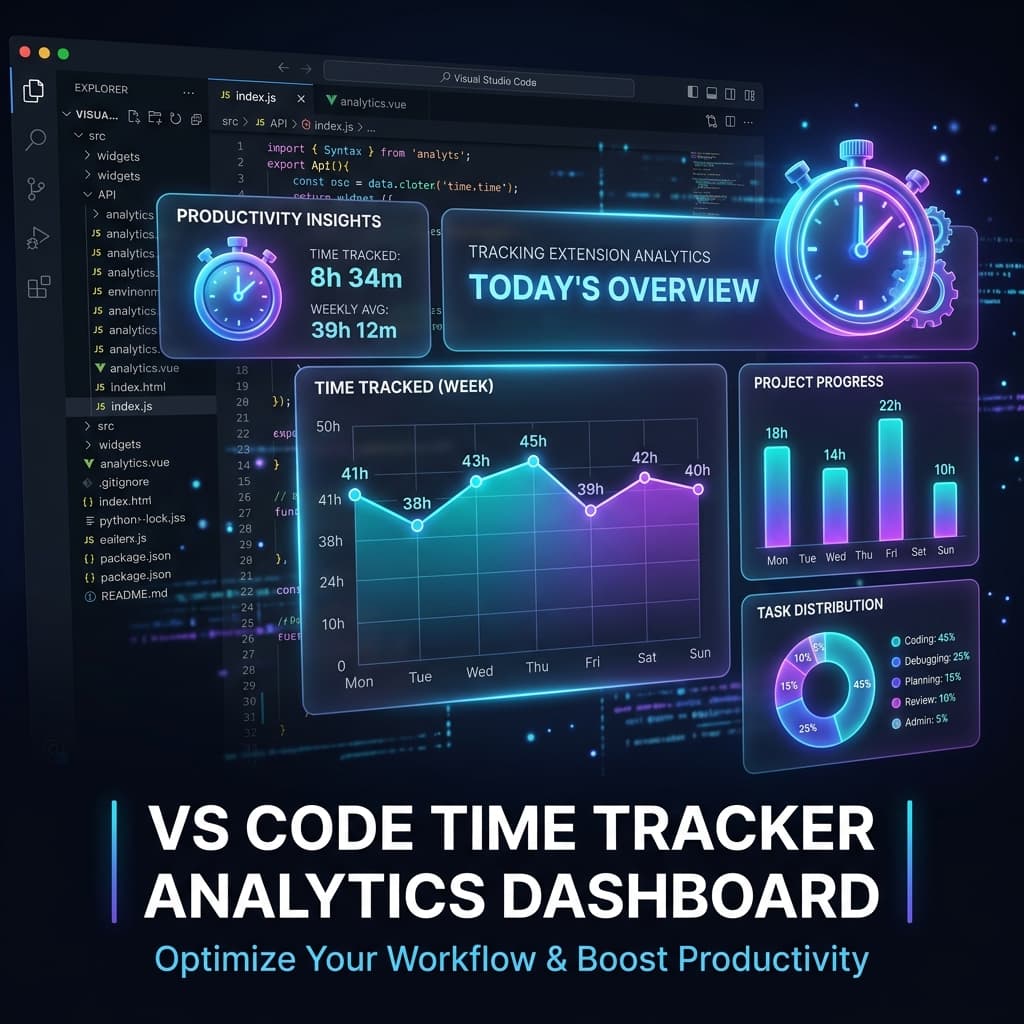
Building a Local-First VS Code Time Tracker: Privacy Meets Productivity
We’ve all been there: you start the day with a clear plan, and before you know it, it’s 6 PM. Where did the time go? While there are many time-tracking tools out there, most of them require a cloud subscription, send your activity data to external servers, and often feel like "bloatware."
I wanted something different. I wanted a tool that:
- Just Works: Automatically tracks when I'm actually coding vs. just having the editor open.
- Privacy-First: Keeps every single byte of data on my local machine.
- Insightful: Provides a beautiful, interactive dashboard to visualize my weekly and daily performance.
That’s why I built Code Time Tracker.
The Architecture: Local-First by Design
One of the core pillars of this project was data sovereignty. Instead of a centralized database, the extension uses a local JSON file stored in the VS Code globalStorage directory.
Heartbeat-Based Tracking
The biggest challenge in time tracking is distinguishing between "editor open" and "actually coding." Using the VS Code API, I implemented a heartbeat mechanism.
The extension listens for editor events:
onDidChangeTextDocumentonDidChangeActiveTextEditoronDidOpenTextDocument
When an event is detected, a "heartbeat" is sent. If heartbeats stop for a configurable period (default 2 minutes), the extension stops the timer. This ensures that your lunch break doesn't count as "coding time."
typescript1// Simplified heartbeat logic2private handleEvent() {3const now = Date.now();4const project = this.getProjectName();56if (now - this.lastHeartbeat > this.inactivityTimeout) {7// Resume tracking8this.startTime = now;9}1011this.saveActivity(project, now);12this.lastHeartbeat = now;13this.updateStatusBar();14}
The Interactive Dashboard
A tracker is only as good as the insights it provides. For the dashboard, I integrated Chart.js within a VS Code Webview. This allowed me to create a rich, interactive experience that feels like a standalone web app but lives directly inside your editor.
Key Features of the Dashboard:
- Weekly Overview: A bar chart showing total coding time for each day of the week.
- Project Breakdown: A doughnut chart illustrating which projects are consuming most of your time.
- Custom Filters: Ability to filter stats by the last 7, 30, or 90 days, or a custom range.
Building the bridge between the extension (Node.js environment) and the Webview (Browser environment) required a robust messaging system using postMessage.
typescript1// Sending data from extension to webview2panel.webview.postMessage({3command: 'updateStats',4data: processedStats5});67// Receiving filter commands from webview8panel.webview.onDidReceiveMessage(message => {9if (message.command === 'filterRange') {10const filteredData = this.statsProvider.getRange(message.start, message.end);11panel.webview.postMessage({ command: 'updateStats', data: filteredData });12}13});
Why Local-First Matters
In an era of ubiquitous SaaS, local-first software is making a comeback. By storing data in ~/.config/Code/User/globalStorage/, I ensure that:
- No Latency: Stats load instantly without waiting for an API.
- Offline Capability: Tracking works perfectly on a plane or a remote cabin.
- Ultimate Privacy: Your coding habits are your own business.
Lessons Learned
Building a VS Code extension is a unique experience. You have to be mindful of the editor's performance—you don't want your extension to make the user's IDE feel sluggish. By using Webpack for bundling and ensuring all heavy data processing happens asynchronously, I managed to keep the footprint minimal.
Conclusion
Code Time Tracker has changed how I view my productivity. It’s not about "working more," but about "working better" by understanding where the hours go.
If you’re interested in trying it out, you can find the source code and the latest .vsix release on GitHub.
Happy coding!